
 Menu

How To Copy and Paste In Procreate In 4 Easy Ways

How to copy and paste to the same or different canvas in Procreate on iPad (why copy and paste wouldn’t work in Procreate)
Copying on an iPad might be one of the easiest things to do or just the most mysterious, frustrating thing you ever came across! So, today we are going to share with you four ways you can use to learn how to copy and paste in Procreate on your iPad.
The four ways we are going to be sharing with you in this post are:
- The Three Fingers Swipe.
- Duplicate.
- Actions Menu.
- The Selection Panel.
1. The Three Fingers Swipe.
The 3 finger swipe allows you to copy a layer and paste it to the same canvas. You just have to make sure that whatever you want to copy is on a layer of its own, so that you don’t end up copying stuff that you don’t need. All you have to do is swipe vertically with three fingers from the top to the bottom of the screen.

A panel then appears to the bottom of the screen giving you copy and paste options.
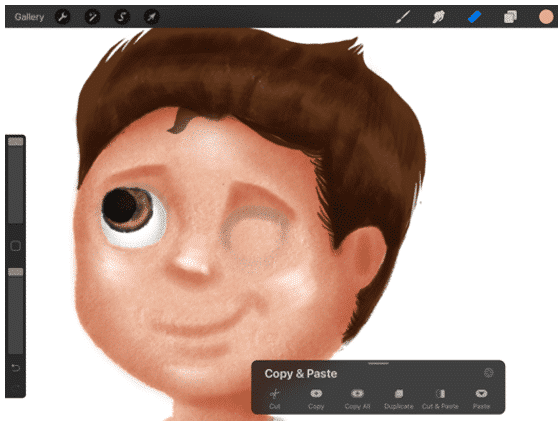
You need to master these gestures for ease in your future work. Press “copy”, Then swipe again with your three fingers and select “paste”. There you go! You have copied whatever layer you are on. Okay okay, we have expected this from procreate anyway, to be able to copy and paste within the same artwork/canvas.
What if we need to combine 2 artworks in one canvas? Naaah, that seems not so possible. Well, we are here to tell you today, that you actually CAN do that!
The 3 finger swipe not only allows you to copy a layer to the same canvas, but it also allows you to copy a layer to ANOTHER canvas in your Procreate gallery! Seriously! How cool is that?!
So, let’s say we need to bring this grandson on the right to the same canvas where his grandmother is, got to reunite the family, right?
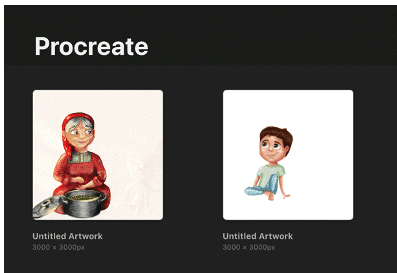
Why didn’t you just draw them on the same canvas, you ask?!! Well, we needed as many layers we can get to work on each of them! Convinced, yet?
Okay, I see you starting to get worried, don’t worry we have got this! First, we will go to the gallery and select the canvas where we drew the boy. Make sure all the layers you need to be copied are toggled and showing. You also want to make sure you untoggled your background, since we just need to bring the boy without his white background!
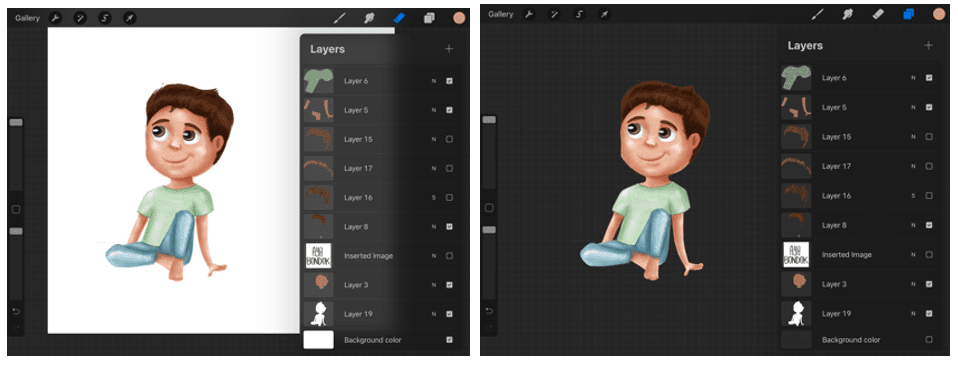
We then swipe with our three fingers again, and our panel is already showing. However, this time we will select “copy all”.
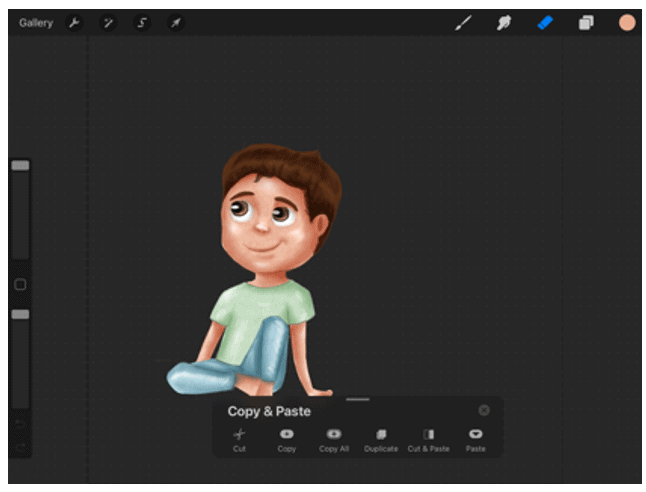
And what that does is that it will allow you to copy all the layers that you have shown on your artwork. Then, we will head over to the canvas where we drew grandma, and again swipe with three fingers and select “paste”.

Note that you might need to reposition the new copied layer (where the boy is) within the already existing layers of the new canvas. You WILL also need to position the boy where you would like him to appear next to his grandma.
2. Duplicate.
Nothing special here! However, “Duplicate” is another handy way to quickly copy a layer to the same canvas to create two things of something. To use duplicate you first select the layer you need to duplicate, then swipe the single layer from right to left. You will have 3 options. Choose the “Duplicate” one.
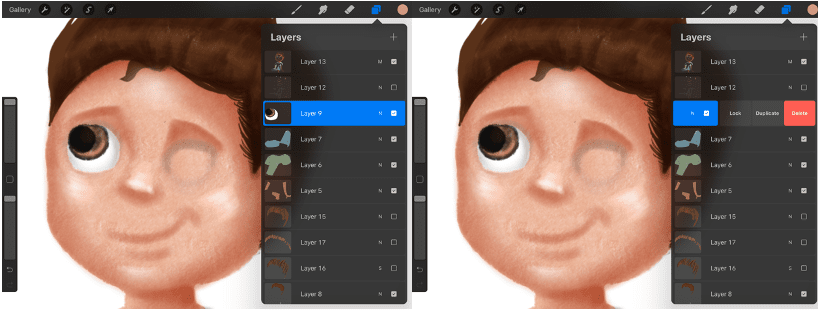
You will then get two layers with the same name select one of them and move it to the desired location.
Note that: The duplicated layer will be just on top of the original layer, So you might think nothing really happened. But it’s right there!
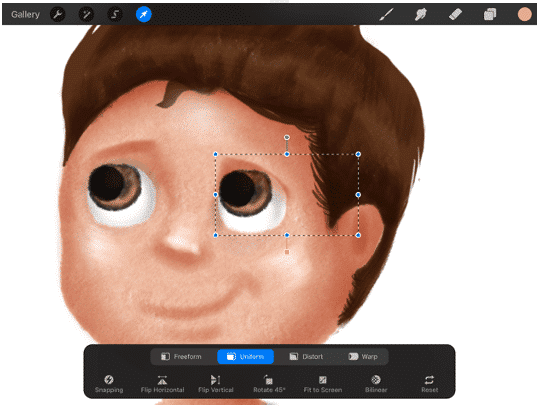
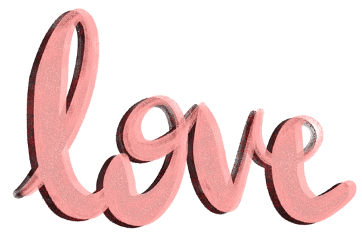
You can especially use Duplicate to create cool calligraphy effects like shadow,
to your writing.
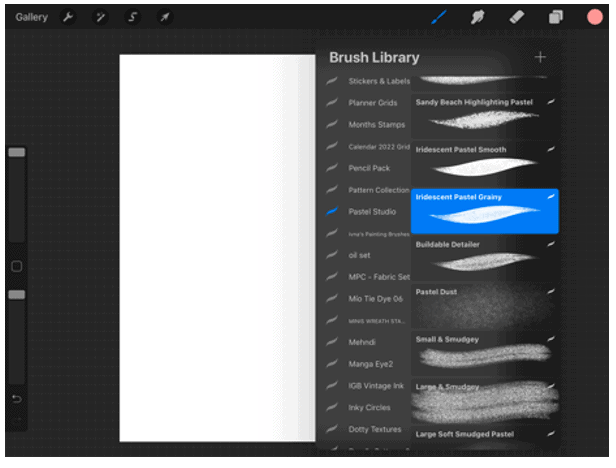
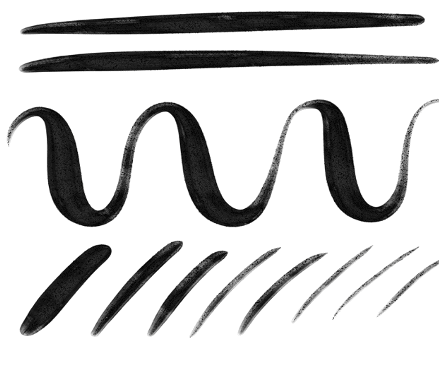
For this demonstration, we used a cool Calligraphy Brush that we have. We use the “Iridescent Pastel Grainy” from the “Pastel Studio” brush set.
We Wrote something.
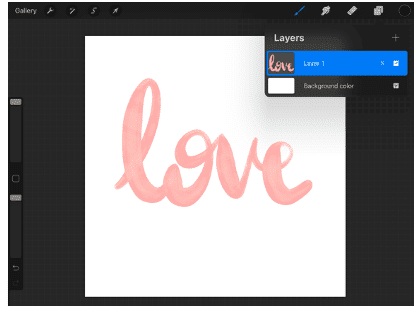
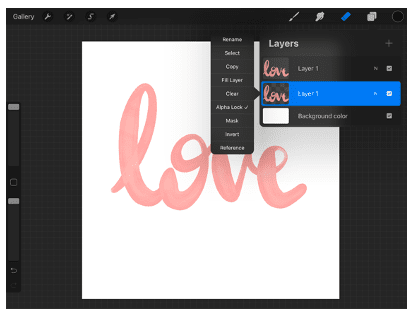
Duplicated it.

Set the lower layer to Alpha Lock by selecting it and tapping once.
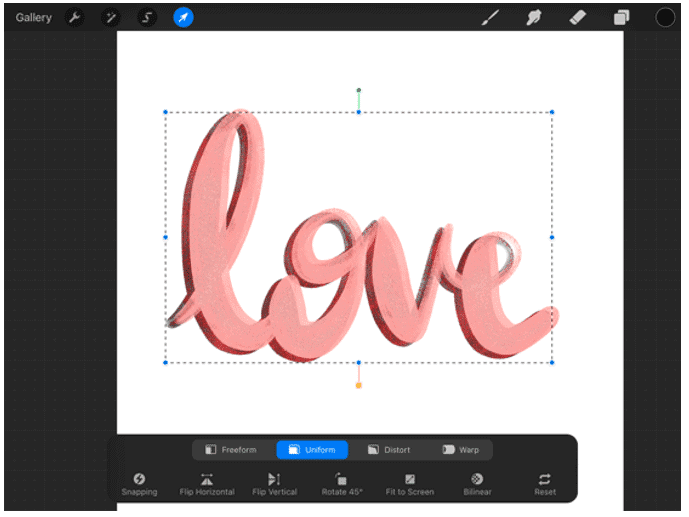
Then we painted the lower layer in black and selected it using the arrow. We moved it slightly to the left to create a shadow effect. And voila!
3. Actions Menu.
You can also use the “Actions” menu to duplicate. It can only be used to copy and paste one layer only, whether it is copying to the current canvas or another one. Select the Actions menu, then add. Select copy.
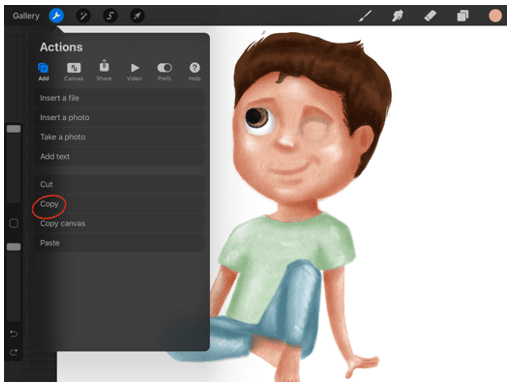
To copy to the same canvas, select all the previous, but then select “paste” instead of “copy”.

To copy to another canvas follow the same steps, except for pasting. We would head over to the new canvas and select the “Actions” menu and then “Paste”.
4.The Selection Panel.
You first choose the selection tool in the upper toolbar. Select whatever object you would like to copy.
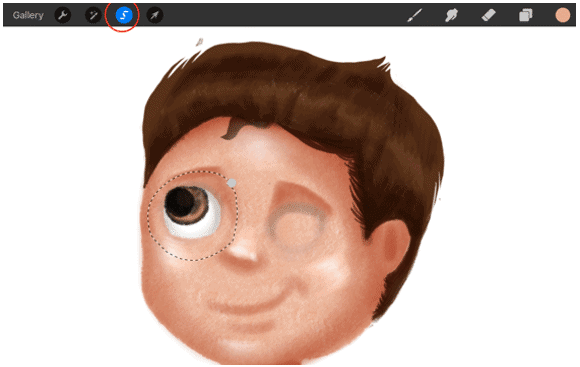
At this point, it might be very tempting to press the arrow to then copy the selection. WRONG! You do that and the copy option disappears. FOREVERRRR! (Look at the underlined selection panel below, you will not find the copy and paste option).
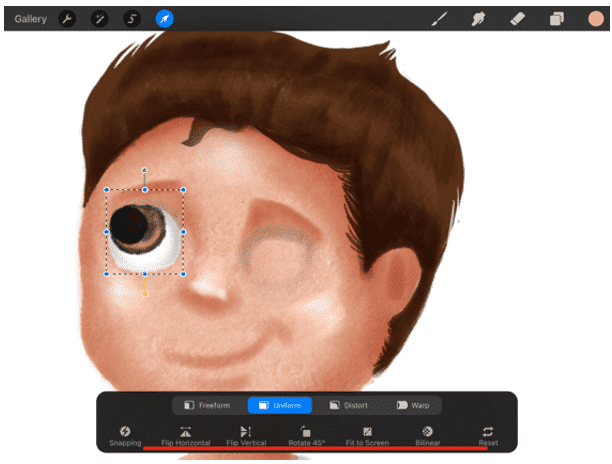
Hehe. Just kidding, you will just have to select again but this time don’t press the arrow.
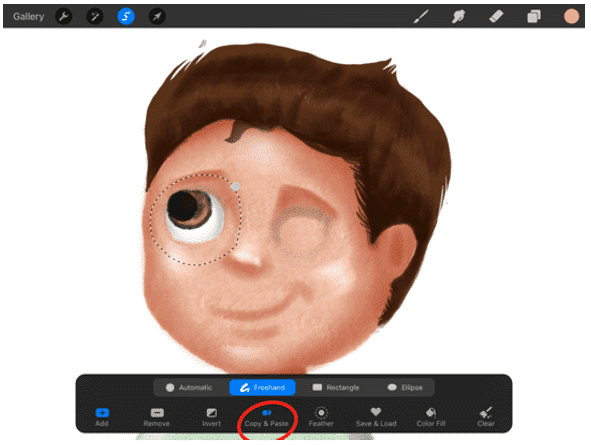
And here is your copy and paste option. Select it. It automatically copies and pastes to the same canvas. Just like Duplicate but to a selection, not a whole layer. Select the new layer (it copies your element to a whole new layer) using the arrow, and move it to where you would like it to be!

We hope you found this tutorial helpful!
And if you are a Procreate brush lover, feel free to check our collection of more than 50.000 brushes that can help you on your way to becoming an excellent artist. Keep on creating!


Share this article